
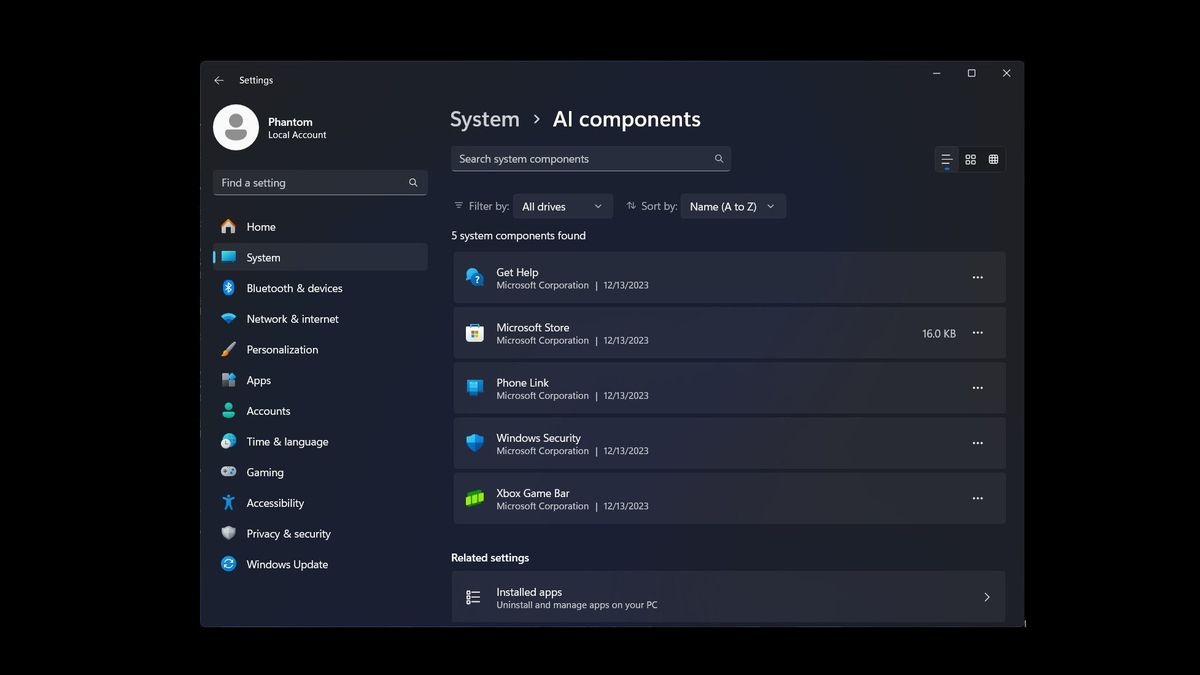

In the age of increasing digital reliance, the topic of removing Windows 11 AI has sparked significant debate among users concerned about privacy and performance. This open-source tool, hosted on GitHub under the repository “RemoveWindowsAI,” allows individuals to effectively disable Windows 11 AI features that may interfere with their computing experience. Users can conveniently remove AI components in Windows such as the Copilot feature, Recall, and other AI-driven enhancements found within applications like Paint and Notepad. Notably, these modifications involve critical Windows 11 registry modifications and can alleviate anxiety surrounding Windows AI privacy concerns. With a rising number of downloads and a growing community interested in alternative computing solutions, this script highlights the increasing demand for user control in the realm of artificial intelligence.
As the debate about artificial intelligence in operating systems continues, many users seek ways to limit or remove AI functionalities from their devices. The GitHub repository “RemoveWindowsAI” serves as a beacon for those who prefer a more traditional Windows experience without the integration of AI capabilities. This tool provides users with the means to streamline their system by removing unwanted AI elements while also emphasizing user privacy and system performance. The conversation around disabling Windows 11 AI highlights the importance of finding a balance between technological advancements and user autonomy, as many prefer the option to opt-out rather than being compelled to accept AI integrations.
Understanding the Need to Remove AI Features from Windows 11
As users increasingly express concern over privacy and performance issues associated with AI features in Windows 11, the need to disable or remove certain artificial intelligence components has become paramount. The introduction of tools like the ‘Remove Windows 11 AI’ script reflects a growing demand for user control over the technology integrated into their operating systems. Many individuals feel overwhelmed by the multitude of pre-installed AI functions, such as Copilot and Recall, which they believe may compromise their privacy and system performance.
The script designed for disabling Windows 11 AI features allows users to streamline their operating experience significantly. By targeting specific registry keys and AppX packages, users can customize their Windows environment to better suit their preferences. Moreover, as concerns around ‘Windows AI privacy’ grow, many users are turning to these scripts as a practical solution to regain control over their data and achieve a more efficient operating system experience.
How to Effectively Disable Windows 11 AI Features
Disabling Windows 11 AI features requires a thoughtful approach to system modification. The ‘Remove Windows 11 AI’ script offers a detailed pathway for users intrigued by the prospect of removing AI components. By leveraging open-source technology, users can readily access and customize or review the steps involved. This level of transparency is crucial for those wary of how Microsoft handles user data and AI integration.
Another critical aspect of the disabling process involves using Windows 11 registry modification techniques. This customization allows individuals to remove unwanted AI installations and prevent possible reinstallation during Windows updates. With careful application of the script and consideration of potential backups before altering system files, users can ensure their systems remain functional while eliminating unwanted AI functionalities.
The Role of Open Source in Removing AI from Windows 11
Open-source projects like the one hosted on GitHub under ‘RemoveWindowsAI’ are instrumental in removing AI components from Windows. These projects provide users with the freedom to modify scripts that cater specifically to their needs, thus fostering a community-driven approach to technology. This sense of collaboration and shared expertise alleviates the fears surrounding proprietary software that often lacks transparency concerning data harvesting.
Moreover, the ability to openly share and improve upon these scripts encourages ongoing refinements that incorporate user feedback. As more individuals realize the implications of AI in their daily computing tasks, the demand for user-friendly, transparent solutions will likely grow, pushing the community to further innovate tools that enhance user privacy and optimal feature management.
User Concerns Over Windows AI Privacy
Privacy concerns surrounding Windows 11’s AI features continue to dominate discussions within the tech community. As Microsoft promotes its AI capabilities as beneficial tools, users express apprehension over possible data harvesting and transparency issues. The AI’s reliance on continuous data input leaves many questioning how secure their information truly is, casting doubt on the purported security measures provided by Microsoft.
Additionally, the forced integration of features such as Recall and Copilot has been met with backlash, making users feel powerless in what was once a customizable operating environment. This public airing of grievances illustrates a broader challenge for Microsoft as users demand greater autonomy to manage how their systems operate, prompting a more considerable dialogue on user-centric AI development in software.
Registry Modifications for AI Removal in Windows 11
Engaging in registry modifications is a crucial step when removing AI features from Windows 11. The ‘Remove Windows 11 AI’ script specifically highlights how altering specific registry keys can directly contribute to the effective disabling of AI components. For users interested in taking matters into their own hands, understanding how these modifications impact their system’s functionality is essential.
However, it is equally important to remember that with these modifications come risks, as improper registry changes can lead to system instability. Thus, creating backups is a vital precaution before making any changes, aligning with the recommendations provided within the open-source script. This proactive approach allows users to revert changes easily should issues arise.
The Benefits of Using Open Source AI Disabling Tools
One significant advantage of using open-source tools like the ‘Remove Windows 11 AI’ script is the empowerment they lend to users seeking to control their operating systems. Unlike closed-source alternatives, these tools enable users to examine, modify, or even contribute to the codebase, ensuring that they can achieve their desired configurations without compromising security or privacy.
Accessibility to the code allows tech-savvy individuals to scrutinize every aspect of its functionality, which builds user trust and alleviates fears of hidden data collection processes. As more users become engaged in such projects, they create an informed community that can educate others on their rights and options regarding AI in their operating systems.
Challenges Faced When Disabling AI in Windows 11
Despite the availability of tools to remove AI components, users encounter multiple challenges when seeking to disable or modify these elements in Windows 11. One challenge includes the intricate nature of performed modifications, as inexperienced users may find it difficult to navigate the script or understand the implications of their changes.
Moreover, Microsoft regularly updates Windows, often reinstating removed components or altering system configurations, which can confuse and frustrate those attempting to fully disable AI features. Users must stay vigilant and informed about updates that may affect their custom configurations, highlighting the need for ongoing community support and user education around managing Windows AI.
Microsoft’s Position on AI Features and its Impact on Users
Microsoft has consistently portrayed its AI features as advantageous enhancements to productivity and user experience. However, this positioning can create a conflict between user expectations and the actual experiences they encounter. While Microsoft argues that these features improve efficiency, many users feel they hinder performance and impose privacy risks.
The disparity between Microsoft’s claims and user experiences has resulted in heightened scrutiny and skepticism towards AI implementations within Windows 11. As these features become increasingly intertwined with the operating system, users demanding better alternatives, such as the option to disable or customize AI components, may represent a substantial shift in how future updates and features are conceived and integrated.
The Future of AI in Windows Operating Systems
The trajectory for AI within Windows operating systems appears uncertain, especially with rising user resistance to forced integration of AI elements. As users seek paths to personalize their experiences, including the potential to disable features at will, Microsoft’s approach to AI strategy could significantly influence user satisfaction and adoption rates.
Given the backlash concerning AI privacy concerns, it’s likely that Microsoft may need to reassess its approach to AI in upcoming releases. Balancing innovation with user control and privacy will be a critical factor in shaping the relationship between technology advancements and user trust in the Windows platform.
Frequently Asked Questions
How do I disable Windows 11 AI features using the Remove Windows 11 AI script?
You can disable Windows 11 AI features by using the Remove Windows 11 AI script hosted on GitHub. This script allows you to modify registry keys, remove AppX packages, and uninstall hidden installers, effectively disabling AI components in Windows 11 like Copilot and Recall.
What steps are involved in removing AI components in Windows 11?
To remove AI components in Windows 11, you can follow the instructions provided in the Remove Windows 11 AI GitHub repository. It includes options for interactive use and non-interactive automation to help you effectively disable or delete AI features.
Is there an open source Windows AI script available for Windows 11?
Yes, there is an open source Windows AI script available in the Remove Windows 11 AI repository. This script allows users to turn off and remove AI-related features, making it a useful tool for those concerned about privacy and performance.
How does Windows 11 registry modification work with the Remove Windows 11 AI tool?
The Remove Windows 11 AI tool works by making specific Windows 11 registry modifications that disable or remove AI components. Users are advised to create backups before applying these changes to prevent any unforeseen issues.
What are common Windows AI privacy concerns addressed by the Remove Windows 11 AI tool?
Common Windows AI privacy concerns include potential data harvesting and resource consumption by features like Copilot and Recall. The Remove Windows 11 AI tool aims to address these issues by allowing users to disable AI components they find intrusive.
Can I revert changes made by the Remove Windows 11 AI script?
Yes, the Remove Windows 11 AI script includes an option to revert changes. It allows users to easily restore any AI components if they decide to re-enable them later, ensuring flexibility and control.
What features can I expect to disable using the Remove Windows 11 AI script?
The Remove Windows 11 AI script enables you to disable key AI features such as Copilot, Recall, and other AI enhancements in applications like Paint and Notepad, allowing for a more traditional Windows experience.
Will Microsoft updates restore removed AI features in Windows 11?
Yes, applying updates from Microsoft may restore some removed AI features. It’s recommended to use the Remove Windows 11 AI tool carefully and keep backups, as it works by modifying system settings that can be altered by future updates.
How popular is the Remove Windows 11 AI tool among users?
The Remove Windows 11 AI tool has gained significant popularity, with thousands of likes and stars on GitHub, reflecting a strong interest in removing AI components from Windows 11 due to privacy and performance concerns.
Is it safe to use the Remove Windows 11 AI script?
Using the Remove Windows 11 AI script is generally safe, but users are advised to back up their system beforehand. As with any modification to the operating system, there may be risks involved, especially with future Microsoft updates.
| Feature | Description | Functionality | Data Collection |
|---|---|---|---|
| Copilot | On-device AI assistant for productivity. | Offers interactive assistance in various applications. | Potentially collects usage data. |
| Recall | Screenshot-based search tool capturing user screens. | Searchable timelines using periodic screen captures. | Collects potentially sensitive visual data. |
| Windows Updates | Automatic system updates including AI components. | Reinstalls components unless removed. | Can restore removed AI features. |
| Performance Impact | User concerns regarding system resource consumption. | Potentially slows down system performance. | Affects user experience negatively. |
| Privacy Issues | Concerns regarding data harvesting practices. | Users worry about online privacy breaches. | Many are looking for ways to disable AI features. |
Summary
To remove Windows 11 AI components, users are turning to a new open-source script that targets features like Copilot and Recall. This surge of interest reflects growing concerns about privacy and performance linked with Microsoft’s AI systems. The script modifies registry keys and removes onboard configurations that enable these features, showcasing a strong user demand for greater control over their operating systems. As Microsoft continues to enhance Windows 11 with AI, user engagement in tools like the ‘Remove Windows 11 AI’ script highlights a significant trend in seeking to balance technological advancement with personal privacy and system performance.
Related: More from Market Analysis | Earnings season is wrapping up with a mixed bag of results across | Polymarket Bet Fails to Catch Insider Traders